Speech to Text

Transcribe your voice to text in real time using browser-based speech recognition.

The Speech to Text tool converts your spoken words into written text in real time using the browser's built-in Web Speech API. It supports over 15 languages, continuous dictation mode, and displays interim results as you speak. All audio processing is handled by your browser — no files are uploaded to any server. Whether you need to transcribe meeting notes, dictate a first draft, or use voice input for accessibility reasons, this tool provides a fast, free, and private solution directly in your browser.

Loading Speech to Text...
Your data stays in your browser
Tutorial

How to Use Speech to Text

1
1

Select Your Language

Choose the language you will be speaking from the dropdown menu. The tool supports 15+ languages and regional dialects.

2
2

Start Recording

Click the Start Recording button and allow microphone access when prompted by your browser. Speak clearly into your microphone.

3
3

View Real-Time Transcript

Watch your words appear in the transcript area as you speak. Interim results are shown in gray until finalized.

4
4

Copy or Clear

Once finished, click Stop Recording and copy the transcript to your clipboard or clear it to start over.

Guide

Complete Guide to Speech Recognition in the Browser

How Browser Speech Recognition Works

The Web Speech API is a browser-native interface that enables web applications to convert spoken audio into text. When you click Start Recording, the browser activates your microphone and streams audio data to a speech recognition engine. In Chromium-based browsers, the audio is typically processed by Google's cloud speech services, which return recognized text in real time. The API provides both interim and final results. Interim results update rapidly as the engine refines its understanding of what you are saying, while final results represent the engine's best interpretation of a completed phrase or sentence.

The Web Speech API: SpeechRecognition Interface

The SpeechRecognition interface provides several configurable properties. The `lang` property sets the recognition language, `continuous` determines whether recognition stops after the first pause, and `interimResults` controls whether partial results are reported. Event handlers like `onresult`, `onerror`, and `onend` allow applications to react to recognized speech, handle errors gracefully, and know when recognition has stopped. This event-driven architecture makes it straightforward to build responsive voice interfaces.

Improving Transcription Accuracy

Several factors affect speech recognition accuracy. Microphone quality is paramount — a dedicated headset or USB microphone will outperform a laptop's built-in mic. Minimizing background noise, speaking at a natural pace, and enunciating clearly all help. The choice of language model also matters. Setting the correct language and regional variant (e.g., en-US vs. en-GB) ensures the engine uses the right phonetic models and vocabulary. For specialized terminology, speaking slightly slower and pausing between technical terms can improve recognition.

Accessibility and Voice Input

Speech-to-text technology is a cornerstone of digital accessibility. For individuals with motor disabilities, repetitive strain injuries, or conditions like carpal tunnel syndrome, voice input provides an essential alternative to keyboard and mouse interaction. The Web Content Accessibility Guidelines (WCAG) emphasize providing multiple input modalities. Beyond physical accessibility, voice input also benefits users in situations where typing is impractical — such as while driving, cooking, or multitasking. The combination of continuous mode and real-time transcription makes extended dictation sessions practical and efficient.

Examples

Worked Examples

Example: Transcribing a Short Note

Given: You need to quickly capture a reminder or note without typing.

1

Step 1: Select your language (e.g., English US) and disable continuous mode for a short note.

2

Step 2: Click Start Recording and say: 'Remember to call the dentist tomorrow at 3 PM.'

3

Step 3: The tool transcribes your speech and stops automatically after you pause.

Result: The transcript reads 'Remember to call the dentist tomorrow at 3 PM.' — ready to copy.

Example: Dictating a Long Email

Given: You want to compose a multi-paragraph email by voice.

1

Step 1: Select your language and enable continuous mode so dictation continues after pauses.

2

Step 2: Click Start Recording and speak your email content naturally, pausing between sentences.

3

Step 3: When finished, click Stop Recording. Review the full transcript in the display area.

4

Step 4: Click Copy Transcript and paste into your email client for editing.

Result: A complete multi-paragraph transcript ready for final editing and sending.

Use Cases

Practical Use Cases

Meeting Notes & Minutes

Use speech-to-text during meetings to capture real-time transcripts of discussions, action items, and decisions. Instead of manually typing notes while trying to stay engaged in the conversation, simply let the tool transcribe everything as it happens. This approach ensures nothing is missed and allows you to focus on the discussion itself. The transcript can then be cleaned up and shared with the team as official meeting minutes.

Accessibility & Assistive Technology

For users with motor impairments, repetitive strain injuries, or other conditions that make typing difficult, speech-to-text provides a hands-free alternative for composing emails, documents, and messages. It removes physical barriers to digital communication and enables anyone to produce written content simply by speaking. Combined with continuous mode, you can dictate at length without interruption, making long-form writing accessible to everyone.

Quick Drafting & Brainstorming

Writers, bloggers, and content creators often find that speaking ideas aloud flows faster than typing. Use this tool to quickly dictate first drafts of articles, social media posts, or creative writing. The stream-of-consciousness approach captures ideas as they come, letting you refine and edit later. Many professional writers use dictation as their primary composition method because it produces more natural-sounding prose and dramatically increases output speed.

Frequently Asked Questions

?Is my voice data kept private?

Yes. The Web Speech API processes audio through your browser's built-in speech engine. On most Chromium browsers, audio may be sent to Google's servers for recognition, but our tool itself never stores, transmits, or has access to your audio data. The transcript exists only in your browser's memory.

?Is this tool completely free?

Yes, it is 100% free with no usage limits, no sign-up required, and no premium tiers. You can use it as much as you need.

?Which browsers support speech recognition?

Speech recognition is best supported in Chromium-based browsers such as Google Chrome, Microsoft Edge, and Brave. Safari has partial support. Firefox does not currently support the Web Speech API for recognition.

?What is continuous mode?

When continuous mode is enabled, the recognition engine keeps listening after natural pauses in your speech. When disabled, recognition stops automatically after the first pause, which is useful for short commands or single sentences.

?Can I use this for dictation in another language?

Absolutely. The tool supports over 15 languages including English, Spanish, French, German, Chinese, Japanese, Korean, Arabic, Hindi, and more. Select your language before starting the recording.

?Why does the transcript sometimes have errors?

Speech recognition accuracy depends on factors like microphone quality, background noise, accent, speaking speed, and the complexity of vocabulary. Speaking clearly and using a good microphone will improve accuracy significantly.

?Can I use this tool on my phone?

Yes, speech recognition works on mobile Chrome and Edge browsers. Make sure to grant microphone permissions when prompted. The tool is fully responsive and works well on all screen sizes.

?Does this work offline?

The Web Speech API typically requires an internet connection for cloud-based recognition in Chromium browsers. Some browsers offer on-device speech recognition for certain languages which can work offline, but availability varies.

Related Tools

Recommended Reading

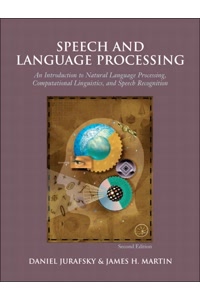
Recommended Books on Voice Technology & Accessibility

As an Amazon Associate we earn from qualifying purchases.

Boost Your Capabilities

Recommended Products for Productivity

As an Amazon Associate we earn from qualifying purchases.

How do you like this tool?

Newsletter

Get Free Productivity Tips & New Tools First

Join makers and developers who care about privacy. Every issue: new tool drops, productivity hacks, and insider updates — no spam, ever.

Priority access to new tools
Unsubscribe anytime, no questions asked