Convert Word to PDF

Convert Word (DOCX) documents to PDF with faithful rendering, page size options, and quality control.

Transform your Word documents into polished PDF files directly in your browser. This free tool reads DOCX files, renders their content faithfully, and produces a downloadable PDF with customizable page size and quality settings. Choose between draft, standard, and high quality to balance file size and visual fidelity. All processing happens locally; your documents never leave your device.

Your data stays in your browser
Was this tool useful?
Tutorial

How to use

1
1

Upload your Word file

Drag and drop a DOCX file onto the upload area or click to browse and select the document you want to convert.

2
2

Configure output settings

Choose a page size (A4, Letter, Legal) and a quality level (Draft, Standard, High) to control file size and visual fidelity.

3
3

Download the PDF

Press Convert to PDF, preview the result if desired, and download the finished PDF document.

Guide

Complete Guide to Word to PDF Conversion

What Is the Word to PDF Converter?

The Word to PDF Converter is a free browser-based tool that transforms DOCX documents into downloadable PDF files. It parses the Open XML structure of your Word file, renders text and styles into a PDF layout using jsPDF, and lets you choose page size and quality before producing the final output. No installation, no account, and no server upload required; everything runs in your browser so sensitive documents remain on your device.

Why Convert Word to PDF?

PDFs display identically on every device, operating system, and printer, making them the universal standard for sharing finalized documents. Converting your Word files to PDF before distributing them ensures recipients see the exact layout you intended, prevents accidental edits, and satisfies requirements for many submission portals, legal filings, and archival systems. Local conversion also keeps confidential content off third-party cloud services.

Key Features and Capabilities

The converter supports multiple page sizes (A4, Letter, Legal) and three quality levels (Draft, Standard, High) so you can balance file size against visual fidelity. A built-in preview lets you inspect the output before downloading. The tool handles headings, paragraphs, lists, and basic text styling. A progress indicator keeps you informed during conversion, and the result is delivered as a direct download link.

Best Practices and Tips

For the best results, use well-structured DOCX files with standard fonts. If you need exact font rendering, embed fonts in your Word document before converting. Choose Standard quality for everyday documents and High for print-ready output. Very large files may take longer to process; close unnecessary tabs to free up browser memory. You can chain this tool with Kitmul's PDF Merger, PDF Splitter, or PDF Compressor to build a complete document workflow.
Examples

Worked Examples

Example: Convert a business proposal to PDF

Given: A 10-page Word proposal that must be sent to a client as a non-editable PDF with consistent formatting.

1

Step 1: Open the Word to PDF converter and upload the proposal DOCX file.

2

Step 2: Set the page size to A4 and quality to Standard, then click Convert to PDF.

3

Step 3: Preview the output, verify the layout looks correct, and download the PDF.

Result: The proposal is now a polished PDF ready to share with the client, with formatting preserved across devices.

Example: Create a print-ready resume

Given: A Word resume that needs to be converted to a high-quality PDF for printing and digital submission.

1

Step 1: Upload the resume DOCX file to the converter.

2

Step 2: Select Letter page size and High quality for crisp printing.

3

Step 3: Preview the result, then download the PDF and submit it to the application portal.

Result: The resume is a high-fidelity PDF that prints cleanly and displays consistently on any device.

Use Cases

Use cases

Share a finalized report

Convert a Word report into PDF before sending it to clients or stakeholders, ensuring the layout and formatting look the same on every device and operating system.

Submit an application document

Turn your Word resume or cover letter into a professional PDF so that fonts, margins, and spacing are preserved when the recipient opens the file.

Archive completed proposals

Convert finished business proposals from Word to PDF for long-term archival, guaranteeing the document remains unchanged and universally readable years later.

Frequently Asked Questions

?How does the Word to PDF conversion work?

The tool reads the DOCX file in your browser, parses its XML content and styles, renders the text and layout into a PDF structure using jsPDF, and delivers the result as a downloadable file; no server involved.

?Will my formatting be preserved in the PDF?

Text content, headings, paragraphs, and basic styles transfer accurately. Complex elements like embedded macros, SmartArt, or unusual fonts may render differently since the conversion runs in the browser without access to system fonts.

?What page sizes are supported?

The tool supports A4, US Letter, and Legal page sizes. Select your preferred format in the options panel before starting the conversion.

?Is the Word to PDF converter free and private?

Yes, it is completely free with no usage limits. Everything runs locally in your browser, and your Word files are never uploaded to any server, so your documents stay fully private.

?What is the difference between the quality levels?

Draft produces the smallest file with lower rendering detail, Standard balances quality and size for everyday use, and High maximizes visual fidelity at the cost of a larger file. Standard is recommended for most documents.

?Are there file size or page count limits?

There are no hard limits, but very large files depend on your device memory. If the browser becomes unresponsive, try a smaller file or close other tabs to free up RAM.

?Can I convert password-protected Word files?

You need to remove the password protection from the DOCX file before converting. The tool cannot bypass document encryption, but it will process any unprotected Word file.

?Can I preview the PDF before downloading?

Yes. After conversion, a preview is displayed so you can check the layout and formatting before saving the file to your device.

Help us improve

How do you like this tool?

Every tool on Kitmul is built from real user requests. Your rating and suggestions help us fix bugs, add missing features and build the tools you actually need.

Rate this tool

Tap a star to tell us how useful this tool was for you.

Suggest an improvement or report a bug

Missing a feature? Found a bug? Have an idea? Tell us and we'll look into it.

Related Tools

Recommended Reading

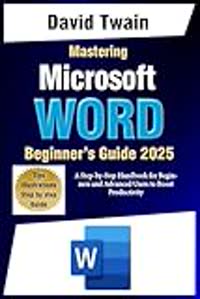
Recommended Books on Document Management & Microsoft Word

As an Amazon Associate we earn from qualifying purchases.

Boost Your Capabilities

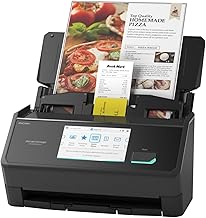
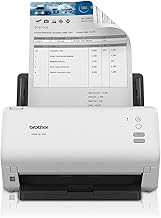
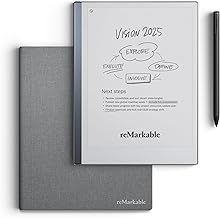
Professional Products to Boost Your Document Workflow

As an Amazon Associate we earn from qualifying purchases.

Newsletter

Get Free Productivity Tips & New Tools First

Join makers and developers who care about privacy. Every issue: new tool drops, productivity hacks, and insider updates — no spam, ever.

Priority access to new tools
Unsubscribe anytime, no questions asked