Here is a slightly embarrassing confession: I spent years paying for PDF software I used maybe twice a month. Adobe Acrobat, SmallPDF, iLovePDF, PDF2Go — I have rotated through all of them. Every time I needed something boring like merging two contracts or stamping a watermark across a tax form, I would either upload the file to a random SaaS and cross my fingers, or fire up a 400 MB desktop app that wanted three different sign-ins.
At some point the absurdity hit me. PDF is a public specification. The format has been stable for three decades. Modern browsers can parse, render, and modify PDFs natively. So why are we still shipping tax returns and medical records to somebody else's server every time we need to rotate a single page?
That question turned into this: nineteen browser-based PDF tools that cover every operation I used to rely on cloud services for. No upload, no account, no hidden paywall, no file-size limits beyond what your laptop can handle. Drop the PDF in, do the thing, download the result. This post walks through all of them, grouped by what you are actually trying to do — and more importantly, explains why the browser-first approach is genuinely better and not just a privacy marketing slogan.
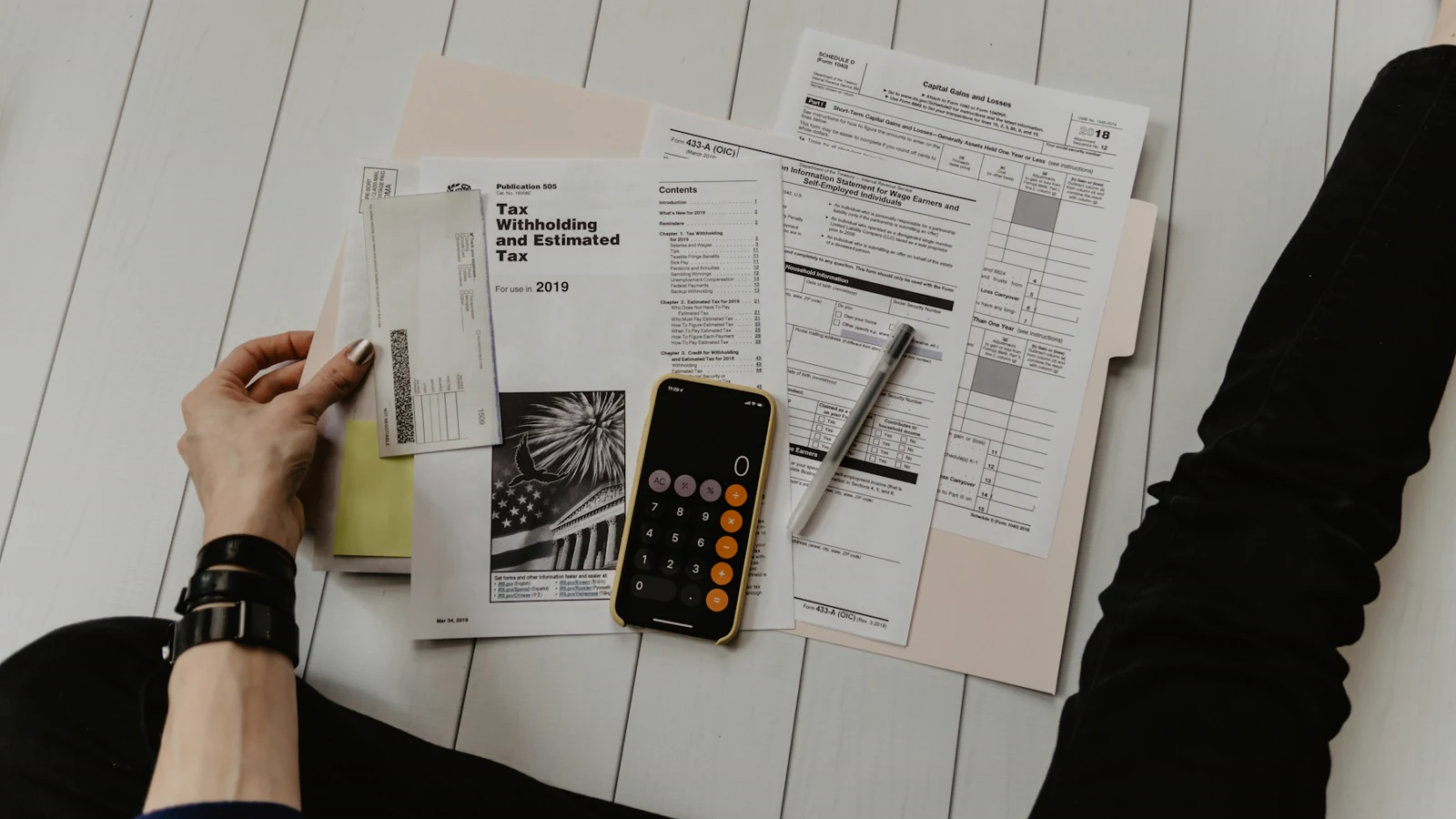
Why we can do this in the browser at all
The reason a full PDF toolkit can now live inside a browser tab comes down to three things: pdf-lib, a pure-JavaScript library for reading and writing PDFs; PDF.js, Mozilla's battle-tested PDF renderer that ships inside Firefox; and WebAssembly, which lets us run C and Rust code at near-native speed for the heavier operations like re-encoding images. Together they cover essentially everything that a desktop PDF editor can do — and they do it without a single byte of your document leaving your machine.
When you open a PDF on Kitmul, the File API reads bytes directly from disk into memory. pdf-lib parses the page tree. You make edits. A new Blob is generated in-browser. You click download. The entire round-trip happens inside the tab that opened the page. There is no server-side worker, no S3 bucket, no queue. Close the tab and the file is gone from memory.
This is not a theoretical privacy win. If you are an accountant handling client returns, a lawyer working with privileged communications, or a healthcare worker dealing with records covered under HIPAA or GDPR, "we upload your file and delete it after two hours" is a compliance problem. "Your file never left your laptop" is not.
The big three: merging, splitting, and rearranging pages

Google Trends is remarkably consistent: merge PDF and split PDF are the two most searched PDF queries on Earth, year after year. Combined with extracting specific pages, those three operations probably cover 80% of what anyone ever does to a PDF.
The PDF Merger takes a pile of files, lets you drag them into the order you want, and spits out one combined PDF. The PDF Splitter does the inverse — pick a page range, or blow the whole document apart into one-page files. If you only need a few specific pages, the PDF Page Extractor is more surgical, and the PDF Page Deleter is the opposite of that — keep everything except the page the lawyer told you to redact.
Reordering is the one that surprises people. The PDF Page Reorder gives you a drag-and-drop view of every page as a thumbnail, so you can fix that scanner that produced your contract in reverse order without re-scanning it. And the PDF Page Rotator handles the classic "someone scanned the page sideways" problem — rotate one page or all of them in 90-degree increments.

Shrinking files that are too big to email
Every email provider caps attachments at a frustratingly specific number. Gmail's limit is 25 MB. Outlook is 20 MB. Many corporate mail servers are stricter. If you have ever tried to send a scanned contract to a client and been bounced by a server rule, you already know the pain.
The PDF Compressor re-encodes embedded images and strips redundant objects. Typical reductions land between 40% and 70%, and on image-heavy scanned documents it can be much more. The compression happens in WebAssembly, which means a 50 MB PDF finishes in a couple of seconds on a mid-range laptop. Compare that to uploading 50 MB to a server, waiting for a queue, and downloading it back.
Watermarks, page numbers, and making things look official
There is a whole category of PDF work that exists only to make a document look more like a document. The PDF Watermark tool adds text or image watermarks with configurable position, opacity, and rotation — useful for "DRAFT" stamps, company logos, or "CONFIDENTIAL" markers on every page. The PDF Watermark Remover does the reverse, which is handy when you are cleaning up a template that someone saved with a leftover stamp you cannot legally distribute.
PDF Page Numberer is the tool I use most often for anything I print. You pick position, font, start number, and format ("Page X of Y" is a common one), and it renders them as a proper PDF content stream rather than pasting them into an image.
Cropping, margins, and cleaning up scans
Cropping a PDF sounds simple until you try to do it with the tools most people reach for. The PDF Crop tool respects the underlying PDF box model — MediaBox, CropBox, BleedBox — which means the crop is non-destructive and printable sizes stay correct. The PDF Margin Adjuster is the right tool when you do not want to crop content, you just want more whitespace for binding or for annotations.
For anything scanned, the PDF Image Quality Enhancer sharpens and upscales embedded raster images. It will not perform miracles on a potato-quality fax, but it will rescue a lot of mediocre phone-camera scans.
Pulling things out: images, text, metadata
PDFs are sneaky containers. They often carry far more than you realise — embedded images, form field metadata, author names, edit histories. The PDF Image Extractor dumps every embedded image as a standalone file, which is often faster than screenshotting pages. The PDF Metadata Editor lets you inspect and edit the document's title, author, subject, keywords, and creation date. This is where a lot of accidental information leakage happens — ask anyone who has ever sent a "Final_v2.pdf" with the original draft author's name still attached.
The PDF Flatten tool is subtler. Interactive PDFs have layers of form fields, annotations, and AcroForm widgets that can behave differently depending on who opens them. Flattening bakes everything into the page, so what you see is exactly what everyone else will see. Useful for signed contracts that need to stay exactly as signed.
Creating PDFs from other formats

The last three tools are conversions into PDF rather than operations on existing ones. Image to PDF takes a batch of JPG, PNG, or WebP files and stitches them into a single PDF — the classic workflow for turning phone photos of a paper document into something you can email. Text to PDF takes plain text and renders a properly typeset document, which I use more often than I expected for quick receipts and confirmations. PPTX to PDF converts PowerPoint slides into a PDF deck entirely in-browser, using a JavaScript parser rather than shipping your quarterly-review slides to a Microsoft server.
What this toolkit is not
I want to be honest about the limitations, because "runs entirely in the browser" comes with trade-offs. There is no OCR yet — if your PDF is a scanned image with no text layer, you cannot extract text from it. There is no visual page editor in the Adobe Acrobat sense where you draw boxes and type over existing content. Heavy digital signatures (the cryptographic kind, not drawing a signature on a page) need external certificates. Those are on the roadmap, but today they are gaps you should know about.
The upside is that everything that is here, is complete and unlimited. No "free up to five files per day". No watermark on the output. No account wall after your third merge. No file sent over the wire.
Just use it
Everything lives at kitmul.com/en/pdf. The whole page loads once and the individual tools cache as PWA assets, which means you can install it on your phone or laptop and use it offline on a plane. The typical first reaction people have when they realise it is working offline is to refresh the page just to double-check. I did the same thing the first time.
If you use PDFs regularly, bookmark the main page and stop paying for this category of software. If you only need it once a year for your tax return, it is still strictly better than uploading the file to someone you have never heard of. The tool I reach for most is the PDF Merger; the tool I wish I had built five years ago is the PDF Compressor. Your mileage will vary.
I ship tools weekly and I read every piece of feedback. If a PDF operation you need is missing or broken, tell me — the next one on the list gets built because somebody asked.