I write everything in Markdown. Blog posts, documentation, READMEs, personal notes. And I know many of you do too. So when you want to publish something on Medium, you'd expect to just paste your Markdown and be done.
But Medium doesn't support Markdown. Not in 2024, not in 2025, and still not in 2026.
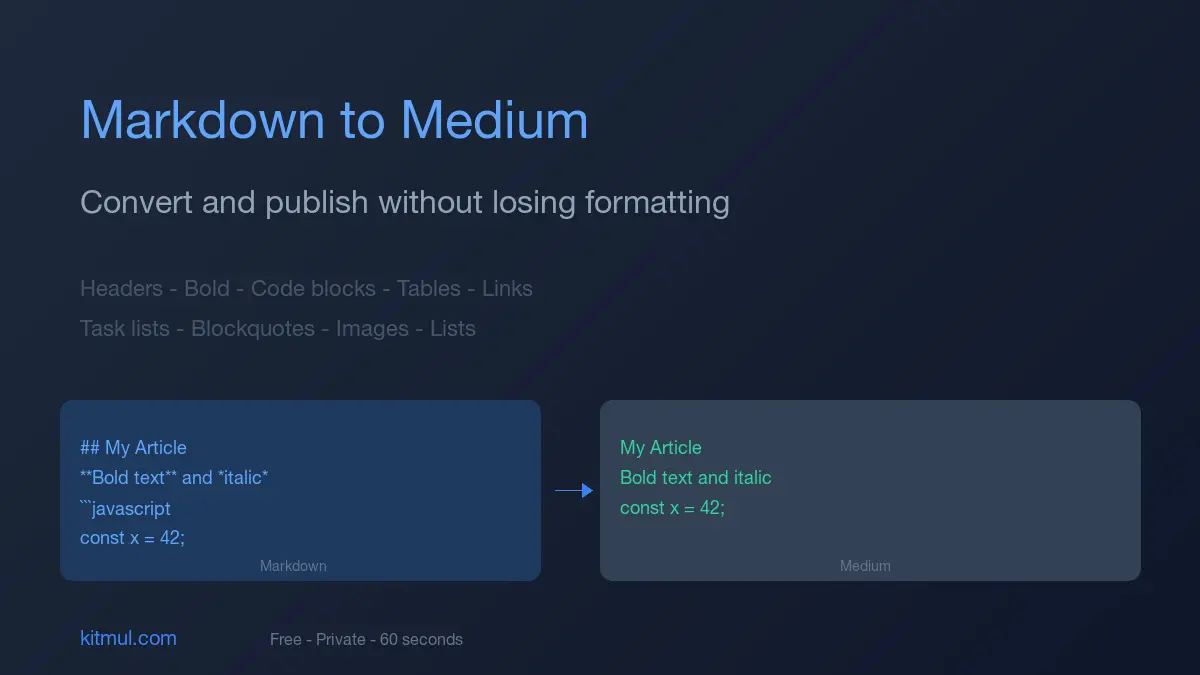
You paste your perfectly formatted article and what happens? The headers show literal ## symbols. Bold text keeps the asterisks. Code blocks lose all formatting. Tables? They just break completely. And you end up spending 30 minutes manually clicking through Medium's editor to fix everything.
I've been there, and it's painful.
The real problem
Medium was designed for a general audience. Its editor is WYSIWYG: you select text, click a button, done. This is great for people who don't write in Markdown. But for developers, technical writers, or anyone used to writing with syntax, it creates a wall.
Here's what breaks when you paste raw Markdown into Medium:
- Headers appear as
## My Titlewith the hash symbols visible - Bold and italic show the asterisks instead of formatting
- Code blocks lose syntax highlighting completely
- Tables are not supported at all. The text just scatters across the page
- Task lists like
- [x] Donerender as plain characters - Links display the raw
[text](url)syntax
If you've ever tried to manually reformat a 2,000-word technical article in Medium's editor, you know the feeling. It takes forever, and you'll still miss something.
Three ways to get Markdown into Medium
Copy-paste and fix manually
The brute force way. You paste your Markdown, then spend 30+ minutes fixing every single heading, code block, bold text, and link by hand. Tables remain impossible.
This only works for very short posts with minimal formatting. For anything else, you'll want to throw your laptop out the window.
Use Medium's import feature
Medium has an import tool at medium.com/p/import that pulls content from a URL. If your Markdown is already published somewhere as HTML, you can try importing it.
It handles basic formatting automatically and sets a canonical URL. But it doesn't work well with tables, task lists, or advanced Markdown features. The quality is inconsistent. Sometimes headings come out wrong, images break, or code blocks lose their formatting. And you have no control over the conversion.
Decent for simple articles. Unreliable for anything technical.
Convert to Medium-compatible HTML first
This is the smart approach. You convert your Markdown into the specific HTML format that Medium's editor understands, then paste it. Medium accepts rich HTML from the clipboard, and if the HTML is structured correctly, all formatting transfers perfectly.
This is exactly what the Kitmul Markdown to Medium converter does. It parses your Markdown, converts it to Medium-optimized HTML, handles all the edge cases, and copies it to your clipboard ready to paste.
Fast (under 5 seconds), handles tables, code blocks, task lists, nested lists. Preserves everything. Free and private, because it runs entirely in your browser. No servers involved.
How it works in practice
The whole process takes about 60 seconds:
1. Open the Markdown to Medium tool and paste your Markdown in the left panel. You'll see a live preview on the right.
2. Check the preview. The tool automatically handles Medium-specific conversions: tables become readable bold-label lists (since Medium doesn't support HTML tables), H4-H6 headings get upgraded to H3 (Medium's maximum), nested lists get flattened with dash prefixes, and task list checkboxes become Unicode symbols.
3. Click "Copy for Medium". The tool copies Medium-optimized HTML to your clipboard. Not the raw Markdown, but the formatted rich text that Medium expects.
4. Open Medium's editor, create a new story, and press Ctrl+V (or Cmd+V on Mac). Your article appears fully formatted. Headers, bold text, code blocks, links. Everything.
Four steps. Less than a minute. Zero manual reformatting.
What transfers and what doesn't
Not everything in Markdown has a Medium equivalent. Here's the reality:
Transfers perfectly: H1, H2, H3 headings. Bold and italic. Links. Inline code. Code blocks. Blockquotes. Ordered and unordered lists. Horizontal rules. Images.
Needs conversion (handled automatically): Tables get converted to a readable list format. H4 through H6 headings get downgraded to H3. Deep nested lists get flattened. Task list checkboxes become Unicode symbols. Code block language classes get stripped (Medium doesn't do syntax highlighting).
Not supported by Medium at all: Footnotes, LaTeX math notation, embedded HTML widgets, anchor links, and table of contents. These are Medium limitations, not conversion issues.
Write once, publish everywhere
Here's something I really believe in. Markdown is the most portable writing format. You write your article once and can publish it on your personal blog (Hugo, Jekyll, Next.js, Astro), on Medium with this converter, on Dev.to and Hashnode which support Markdown natively, on GitHub READMEs, and on newsletter platforms like Substack or ConvertKit.
One source file, many channels. That's the power of writing in Markdown.
The canonical URL trick
If you're publishing on both your own blog and Medium, this is important. Always set a canonical URL on Medium pointing to your original post. This tells Google which version is the primary source, and prevents duplicate content penalties.
To do it on Medium: open your story settings (the three dots menu), scroll to "Content licensing", and enter your original URL.
Without a canonical, Google might choose Medium's version as the primary one because Medium has higher domain authority. That means your own site loses organic traffic. Not great.
The best workflow is: publish on your site first, wait for Google to index it (you can force this in Search Console), and then import to Medium using their "Import a story" feature, which sets the canonical automatically.
Optimizing images
Medium compresses images, and the quality varies. For best results, use images at least 1400px wide. Compress them before uploading. You can use the Kitmul Image Compressor for that. WebP or optimized JPEG works best. And always add alt text to every image in your Markdown.
A note about code blocks
Medium's code block rendering is basic. No syntax highlighting, no line numbers. If your article is code-heavy, keep snippets short (under 20 lines), add comments explaining what the code does, and consider using GitHub Gists for longer samples. Medium renders Gist embeds beautifully.
Structure matters
Medium readers expect short paragraphs (2-4 sentences max), frequent subheadings, key takeaways in bold, and lists instead of dense walls of text. If you structure your Markdown with these patterns, the converted output will feel native to Medium's reading experience.
Why privacy matters here
The Kitmul Markdown to Medium tool runs entirely in your browser. Your content is never sent to any server. The conversion happens locally with JavaScript.
This matters more than you might think. If you're writing about unreleased features, proprietary information, or anything sensitive, pasting it into an online conversion service means giving them a copy of your unpublished work. With a client-side tool, your drafts stay on your device. Nobody reads them before you're ready to publish.
No uploads. No accounts. No tracking. It just works, offline included.
Common questions
Does Medium support Markdown natively? No. Not in 2026. You need to convert Markdown to rich HTML format before pasting. The converter handles this automatically.
Will tables look right on Medium? Medium doesn't support HTML tables. The converter transforms them into a readable bold-label list format. The information is preserved, just displayed differently.
Can I use code blocks with syntax highlighting? You can use code blocks, but Medium doesn't do syntax highlighting. Code appears in monospace format. For complex code, consider GitHub Gists.
Is this free? Yes. Completely free, no limits, no sign-up, no premium tier. It's part of Kitmul's 341 free browser-based tools.
Is my content private? 100%. Everything happens in your browser. Not a single byte leaves your device.
What's the difference with Medium's import feature? Medium's importer needs your content already published at a URL. The Kitmul tool works with raw Markdown directly. And it handles tables, task lists, and other elements that the importer struggles with.
Try it
Open the Markdown to Medium Converter, paste your Markdown, hit copy. Your next Medium article is one paste away.
Related tools: JSON Formatter · Text Diff Checker · Word Counter · Markdown Preview · HTML to Markdown