What you will learn
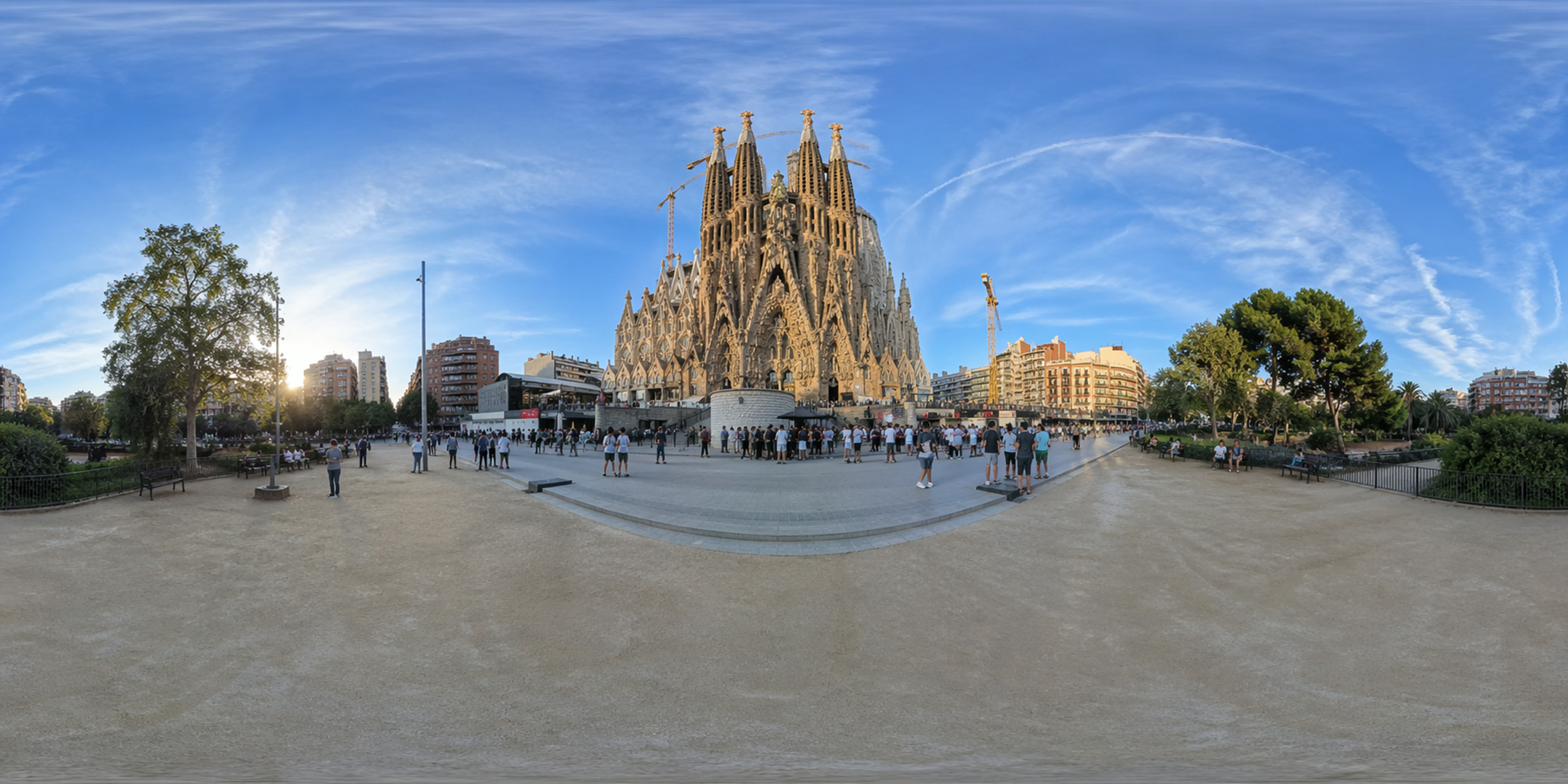
This tutorial covers how to generate 360-degree equirectangular panorama images using GPT Image 2 (the image generation model inside ChatGPT) and how to view them in an interactive 360 viewer that runs entirely in your browser.
By the end you will know:
- What an equirectangular image is and why the format matters
- How to write prompts that produce usable 360 panoramas
- How to load the result into the viewer and explore it
- How to embed the viewer on your own website with a pre-loaded image
What is an equirectangular image
A 360 panorama is stored as an equirectangular projection; a flat rectangle that maps the full sphere of vision onto a 2:1 aspect ratio image. Think of it like a Mercator world map, but for a room instead of the Earth.
- The horizontal axis covers 360 degrees of longitude
- The vertical axis covers 180 degrees of latitude
- The left and right edges must stitch seamlessly; they represent the same point in space
When a 360 viewer loads this image, it wraps it onto the inside of a sphere using Three.js and places the camera at the center. You drag to rotate, scroll to zoom, and the flat image becomes an immersive scene.
Professional cameras like the Ricoh Theta Z1 or Insta360 X4 handle stitching automatically. When generating with AI, the model needs to produce that seamless wrap in a single pass.
Step 1: Open ChatGPT with GPT Image 2
Go to ChatGPT and make sure you are using a model that supports GPT Image 2 (GPT-4o with image generation enabled). GPT Image 2 is available on ChatGPT Plus, Team, and Enterprise plans.
GPT Image 2 does not produce equirectangular projections by default. You need to be explicit about the format, the aspect ratio, and the seamless stitching requirement in every prompt.
Step 2: Write the prompt
The prompt structure has three critical parts:
- Scene description: what you want to see
- Format specification: equirectangular projection, 2:1 aspect ratio
- Seamless constraint: left and right edges must stitch when wrapped onto a sphere
Base prompt template
Generate a 360-degree equirectangular panorama image of [SCENE DESCRIPTION].
The image must use equirectangular projection with a 2:1 aspect ratio.
The left and right edges must stitch seamlessly when wrapped onto a sphere.
Photorealistic style. High detail. Even lighting across the full 360 degrees.
Example prompt: Gothic cathedral interior
Generate a 360-degree equirectangular panorama image of the interior of a
gothic cathedral inspired by Sagrada Familia in Barcelona. Tall columns
branching into tree-like structures supporting the ceiling. Stained glass
windows casting colored light across stone surfaces. Warm afternoon light
filtering through the nave. The image must use equirectangular projection
with a 2:1 aspect ratio. The left and right edges must stitch seamlessly
when wrapped onto a sphere. Photorealistic style.
Example prompt: Modern apartment
Generate a 360-degree equirectangular panorama image of a modern minimalist
apartment living room. White walls, large floor-to-ceiling windows with
city skyline view, a gray sectional sofa, wooden coffee table, indoor
plants, and warm pendant lighting. Scandinavian design. The image must use
equirectangular projection with a 2:1 aspect ratio. The left and right
edges must stitch seamlessly when wrapped onto a sphere.
Example prompt: Tropical beach
Generate a 360-degree equirectangular panorama image of a tropical beach
at sunset. Crystal clear turquoise water, white sand, palm trees swaying,
a wooden pier extending into the ocean, dramatic orange and pink sky. The
image must use equirectangular projection with a 2:1 aspect ratio. The
left and right edges must stitch seamlessly when wrapped onto a sphere.
Step 3: Download the image
After ChatGPT generates the image:
- Click on the generated image to open it full size
- Click the download button (arrow pointing down)
- Save it as JPEG or PNG; always grab the highest resolution available
GPT Image 2 outputs images at around 2048x1024 pixels. Higher resolution means more detail when the image is stretched across the full 360-degree sphere.
Step 4: Load it into the interactive viewer
Open the Interactive 360 Photo Viewer and drag your downloaded image onto the upload area. The viewer will:
- Download and decode the image
- Map it onto a 3D sphere using WebGL
- Let you drag to look around, scroll to zoom, and toggle auto-rotate
Everything runs locally in your browser. The image never leaves your device.
Here is a live example; drag around to explore:
Tips for better results
1. Always specify the 2:1 aspect ratio. Without it, the model defaults to square or 16:9. These break the projection math when loaded into a viewer.
2. Describe the full 360-degree scene. Instead of "a room with a window", describe all four walls: "large windows on the north wall, a bookshelf on the east wall, a fireplace on the south wall, and a door on the west wall." The model produces better wraps when it understands the complete environment.
3. Request even lighting. The most common failure is a visible seam where the left and right edges meet. This happens when the lighting differs drastically across the scene. Specifying "even lighting" or "diffuse ambient light" reduces seam artifacts.
4. Interiors work better than open landscapes. Enclosed spaces (rooms, cathedrals, caves, studios) produce more consistent equirectangular results. Walls and ceilings anchor the perspective and reduce geometric warping.
5. Iterate with follow-up prompts. If the result has a visible seam or distorted geometry, tell ChatGPT exactly what went wrong: "The left and right edges don't match; there's a visible break in the wall texture. Regenerate with seamless horizontal stitching." GPT Image 2 responds well to specific corrections.
6. Download at full resolution. Lower resolution images lose detail when stretched across a sphere. Every pixel counts in equirectangular projection.
How to embed the viewer on your own site
The 360 viewer can be embedded on any website using an iframe. The src query parameter pre-loads a specific image:
<iframe
  src="https://kitmul.com/en/embed/image-design/interactive-360-photo-viewer?src=YOUR_IMAGE_URL"
  width="100%"
  height="500"
  frameborder="0"
  allowfullscreen
  loading="lazy"
></iframe>
Replace YOUR_IMAGE_URL with the public URL of your equirectangular image. The image must be publicly accessible and serve appropriate CORS headers. For images on the same domain, use a relative path: ?src=/images/my-panorama.jpg.
Limitations to keep in mind
GPT Image 2 is not a 360 camera. The images are impressive but imperfect:
| Limitation | Details |
|---|---|
| Seam artifacts | About 30% of generations show a visible seam. Fix with follow-up prompts or GIMP's offset filter |
| Geometric inconsistency | Straight lines sometimes curve or warp, especially in architectural scenes |
| Resolution ceiling | Max ~2048x1024. Professional 360 cameras shoot at 5.7K+ |
| No depth data | AI panoramas are flat projections; you can rotate but not move through the space |
AI-generated vs. professional 360 photos
| Aspect | GPT Image 2 | Professional 360 camera |
|---|---|---|
| Cost per image | Free (ChatGPT subscription) | $200-800+ per session |
| Time to produce | 30-60 seconds | Hours (setup + shooting + stitching) |
| Resolution | ~2048x1024 | 5760x2880+ |
| Geometric accuracy | Approximate | Photogrammetric precision |
| Customization | Unlimited; describe any scene | Limited to physical locations |
| Seam quality | ~70% seamless | Always seamless |
| Best for | Concepts, prototypes, education | Listings, documentation, VR |
Use cases
- Real estate virtual staging: generate 360 views of unfurnished spaces with different interior styles before the property is decorated
- Architecture concept presentations: show clients what a planned interior will feel like before construction begins
- Educational content: create 360 views of historical interiors for classroom use; Roman villas, medieval castles, Renaissance chapels
- Game and VR prototyping: test spatial feel of environments before committing to full 3D modeling
- E-commerce showrooms: generate 360 product display rooms and embed the viewer on product pages
Summary
- Open ChatGPT with GPT Image 2
- Use the prompt template with explicit equirectangular projection, 2:1 ratio, and seamless edges
- Download the image at full resolution
- Load it into the Interactive 360 Photo Viewer
- Drag to explore, zoom in, toggle auto-rotate, go fullscreen
The entire workflow takes under two minutes and runs entirely in your browser.
The Interactive 360 Photo Viewer is free, private, and processes everything locally. No signup, no server uploads. Part of the Image & Design Tools collection on Kitmul.